Neovim for Manual Pages
Every OS that descends in some way from Unix (e.g., FreeBSD, Linux,
macOS, etc.) has in-system manuals, or “man pages.” These are typically
part of the default OS. You can view these manuals using the man(1) command. When you run
man, it finds the manual you requested and hands off to
another program like less(1)
to render the manual on the screen.
As an illustrative example, let’s pull up the manual for apropos(1), a lightweight
command used to search for man pages. If we type
man apropos at the command line, we’ll see the manual page
in our terminal.
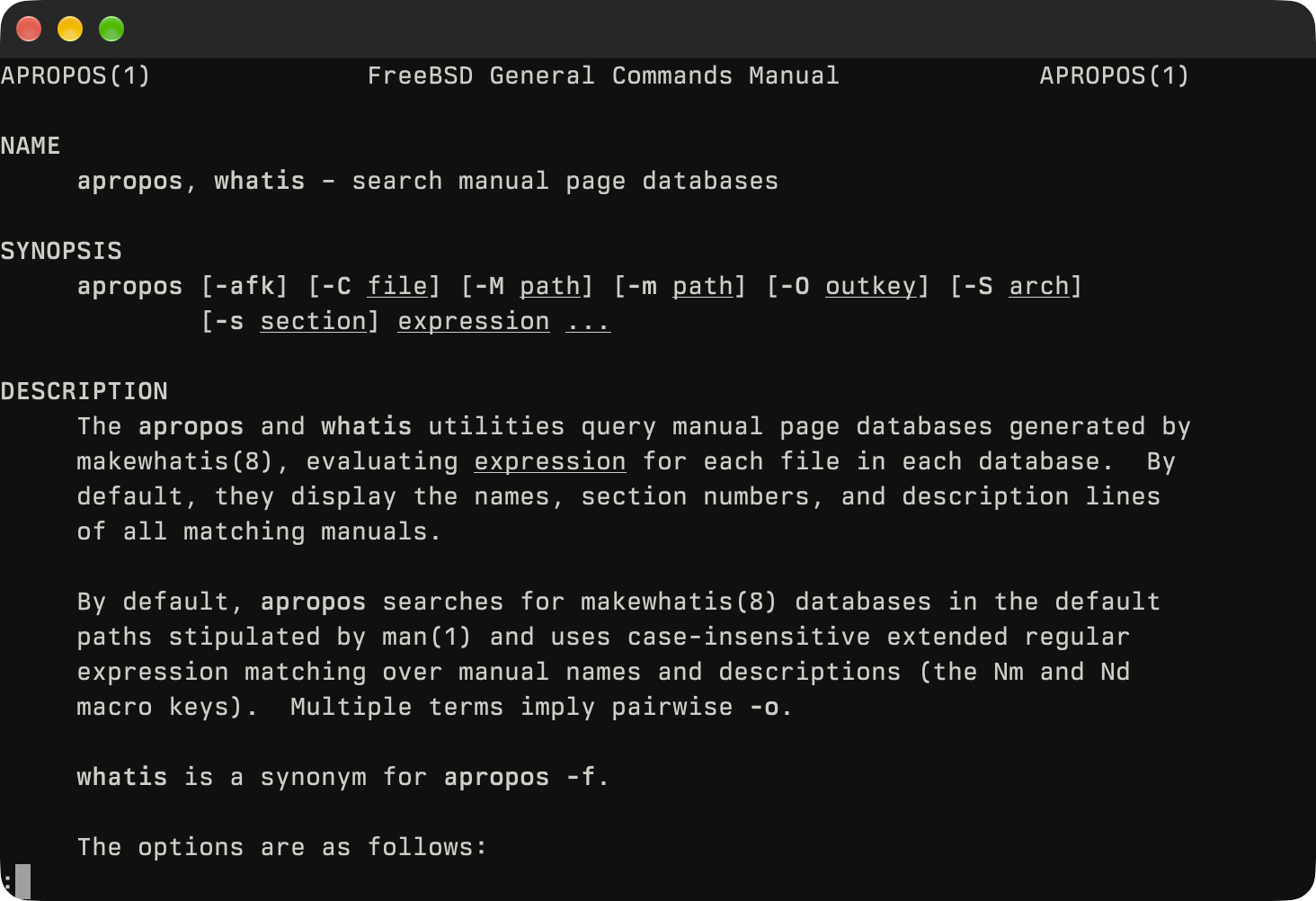
In this screen shot, we’re seeing the formatting that’s done by the less(1) command. It gets the job done, but it’s intentionally simple. If you intend to make heavy use of manuals, you’ll likely find yourself wanting more colors, easier ability to browse several related man pages, navigation beyond paging and searching, good light/dark mode support, etc.
The Neovim Alternative
Neovim is available with the nvim(1) command. It is a refactored version of vim(1) (details at neovim.io). I highly recommend it as a text editor. It’s one of the first things I install on a new system.
Aside from being an excellent text editor, it also has built-in support for viewing man pages. Here’s that same apropos man page, but instead of less, we render it with nvim.
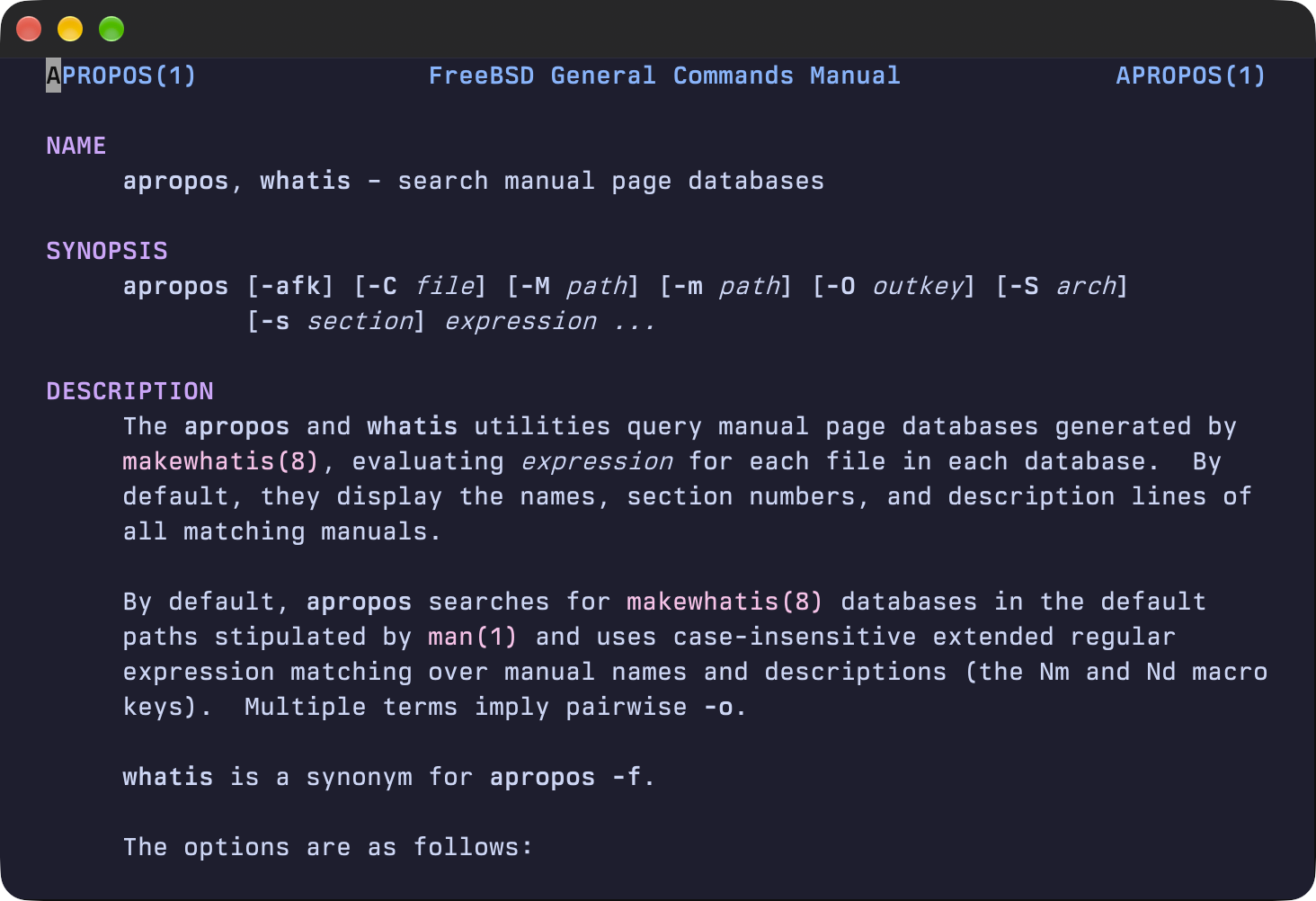
A few things are immediately obvious:
- The catppuccin color scheme (my preference, you can change it)
- Underlined text is now italicized
- Manual titles and section titles each have their own color, making them more distinct
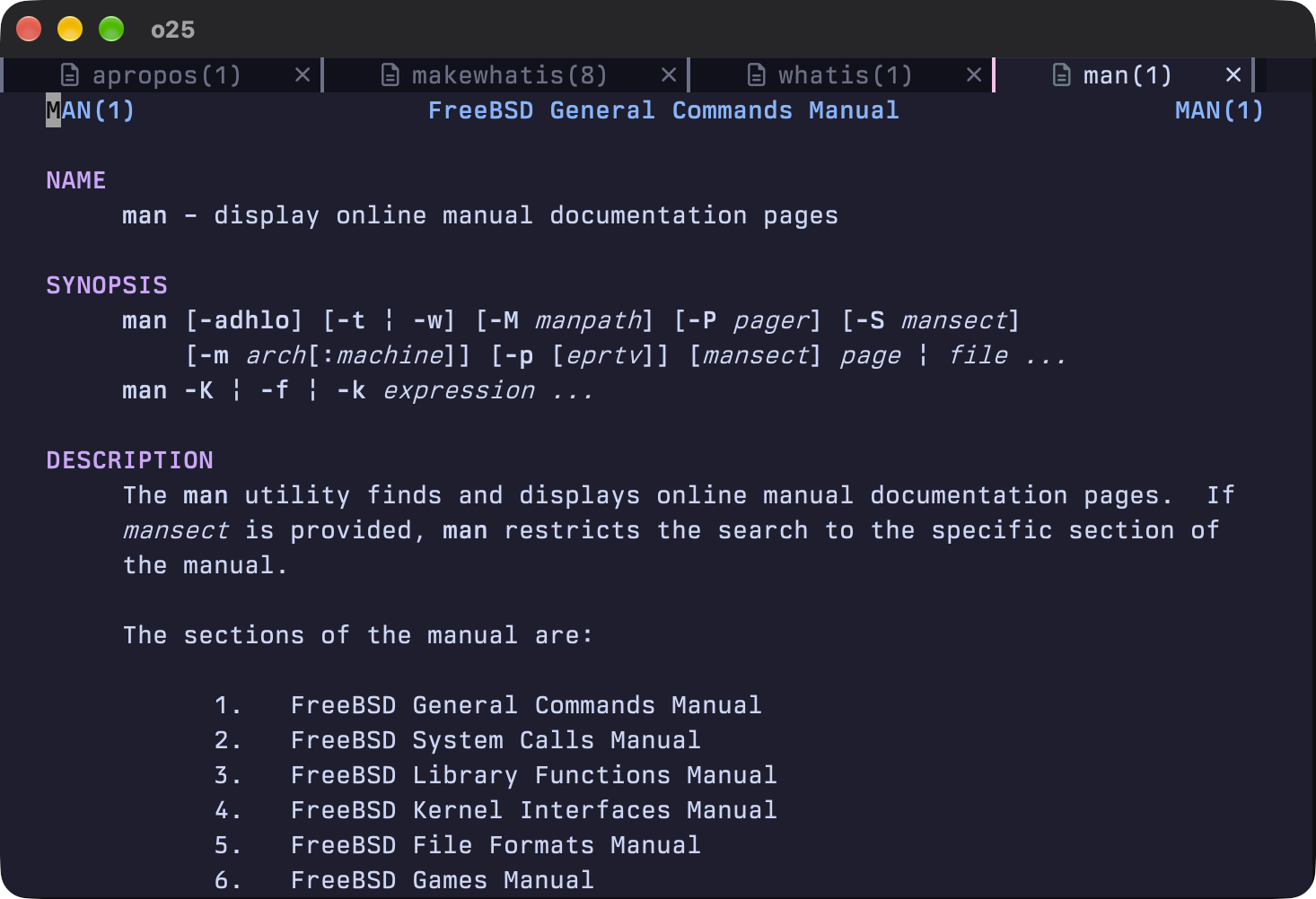
- Referenced man pages are highlighted and act as links to those man pages.
- A navigatable table of contents can be generated by pressing
gO. For large manuals like Z shell’s zshall(1) that are hundreds of pages long, this feature becomes quite useful.
Convinced?
Bring it to life with a few easy steps. You can easily toggle it on/off by commenting out the lines you’ll add in step 2.
Step 1: Install Neovim
To get started, install neovim with your OS’s package manager.
sudo pkg install neovim
Step 2: Update MANPAGER
When your shell starts, it runs a script in your home folder if it
exists and can be used to set environment variables. I use Z shell, so
for me .zshrc is my target to update. MANPAGER
specifies the what program man will use to act as a pager. I also set
MANWIDTH to keep a consistent, narrow format that I find
easier to read.
# Use Neovim for man pages, if installed
if command -v nvim &> /dev/null; then
    export MANWIDTH=80
    export MANPAGER='nvim +Man!'
fi
After making this change, be sure to either log out/in, or manually
source your .zshrc file to read your
changes.
Step 3: Update Neovim’s init.lua script (Optional, but Recommended)
Similar to your shell, when neovim starts, it runs an initialization
script called init.lua. This snippet of code will enhance
the default man page features with keyboard shortcuts similar to
less that include the ability to quickly quit by just
pressing q, spacebar to page down, and
w to page up. It also disables the neovim status bar so
that you have a clean view like you would with less.
-- NEOVIM AS MANPAGER

-- Helper function for smart 'q' (quit) action
local function smart_man_quit()
  -- Get all man buffers, i.e., filetype == 'man'
  local man_buffers = vim.tbl_filter(function(b)
    return vim.api.nvim_buf_is_valid(b) and vim.bo[b].filetype == 'man'
  end, vim.api.nvim_list_bufs())
  -- If >1 man page open, close active page
  if #man_buffers > 1 then
    vim.cmd('bdelete')
  -- If 1, quit nvim
  else
    vim.cmd('quit')
  end
end

-- Man page key bindings and formatting
vim.api.nvim_create_autocmd('FileType', {
  pattern = 'man',
  callback = function(args)
    local opts = { buffer = args.buf, silent = true, nowait = true }

    -- Page jumps
    vim.keymap.set('n', '<Space>', '<C-f>', opts)
    vim.keymap.set('n', 'f', '<C-f>', opts)
    vim.keymap.set('n', 'w', '<C-b>', opts)
    vim.keymap.set('n', 'b', '<C-b>', opts)

    -- Half-page jumps
    vim.keymap.set('n', 'd', '<C-d>', opts)
    vim.keymap.set('n', 'u', '<C-u>', opts)

    -- Smart quit
    vim.keymap.set('n', 'q', smart_man_quit, opts)

    -- UI Simplification
    vim.wo.number = false
    vim.wo.relativenumber = false
    vim.wo.signcolumn = 'no'
    vim.wo.list = false

    -- Disable status bar after other plugins load
    vim.schedule(function()
      vim.opt.laststatus = 0
      vim.opt.ruler = false
      vim.opt.cmdheight = 0
    end)

    -- Collapse extra blank lines between the header and first section
    vim.api.nvim_buf_call(args.buf, function()
      local lines = vim.api.nvim_buf_get_lines(args.buf, 1, 4, false)
      if #lines >= 3 and lines[1] == '' and lines[2] == '' and lines[3] == '' then
        vim.bo[args.buf].modifiable = true
        vim.api.nvim_buf_set_lines(args.buf, 1, 3, false, {})
        vim.bo[args.buf].modifiable = false
        vim.bo[args.buf].modified = false
      end
    end)

  end,
})
That’s it! Enjoy your enhanced man pages.
Verified On
I confirmed this setup works in Z shell (zsh) on the following OS-neovim-man combinations.
| OS | OS Ver | Neovim | Man Type |
|---|---|---|---|
| FreeBSD | 15.1 | 0.12.5 | mandoc |
| FreeBSD | 16-CUR | 0.12.4 | mandoc |
| Debian | 13.6 | 0.10.4 | man-db |
| Alpine | 3.24.1 | 0.12.2 | mandoc |
| macOS | 27.0 | 0.12.5 | mandoc |